Chat for Publishers | Integrating Webchat
This guide will show you how to embed an AI chatbot onto your site.
Action required: update your embed script URL
If your site loads https://embed.direqt.ai/embed.js, switch it to https://embed.chatforpublishers.ai/embed.js. Keep the same ?id=YOUR_BOT_ID and everything else unchanged.
The embed.direqt.ai host is no longer controlled by Chat for Publishers and may stop working at any time. Because the script runs on your pages, please treat this as a security update and make the change as soon as possible. See Migrating From Older Embeds.
Locating Your Bot ID
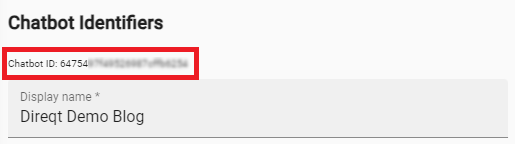
Your bot ID can be found in the Chat for Publishers console within the "Chatbot Settings" tab.
Adding The Embed Script
Place the following script tag in either the <head> or <body> section of your HTML file:
<script type="module" src="https://embed.chatforpublishers.ai/embed.js?id=YOUR_BOT_ID" async></script>
Note
Replace YOUR_BOT_ID with your actual bot ID.
Warning
The script must include type="module". It will not work as a regular script.
Adding Your Chatbot
Use the direqt-webchat custom element to place your chatbot onto the page.
If you omit the <direqt-webchat> element, the embed will automatically inject one with modal layout.
Supported Attributes
| attribute | accepted values | description |
|---|---|---|
bot-id (optional) |
YOUR_BOT_ID |
The bot to embed. If not set, uses the id from the script tag. |
layout (optional) |
modal, overlay, fixed |
How the chatbot is displayed. Defaults to modal. See Layouts below. |
placement (optional) |
bottom-left |
Align the overlay to the bottom left instead of the default bottom right. |
bottom-padding (optional) |
integer | Distance in pixels from the bottom of the page (overlay layout only). |
start-hint (optional) |
poll |
Start conversations with a poll question instead of the standard welcome. |
Layouts
modal (default) — A centered lightbox overlay with a dark backdrop. The chat is hidden until activated by a Text Button or Floating Button.
overlay — A floating circular icon anchored to the bottom corner of the page. Clicking the icon expands the chat into a panel. Includes a message preview bubble.
fixed — The chatbot fills its container element. Use this when embedding the chat inline within your page layout.
Complete Example
<!DOCTYPE html>
<html>
  <head>
    <script type="module" src="https://embed.chatforpublishers.ai/embed.js?id=YOUR_BOT_ID" async></script>
  </head>
  <body>
    <h1>My Website</h1>

    <!-- Option A: Explicit placement with fixed layout -->
    <direqt-webchat layout="fixed"></direqt-webchat>

    <!-- Option B: Overlay layout (or omit for auto-injected modal) -->
    <direqt-webchat layout="overlay"></direqt-webchat>
  </body>
</html>
Migrating From Older Embeds
If your page includes either of the following, replace it with the current snippet shown in Adding The Embed Script:
- A script loaded from
https://embed.direqt.ai/embed.js: change only the host toembed.chatforpublishers.ai. Theidparameter and your<direqt-webchat>element stay the same. - The legacy
<ins class="direqt-embed">format: this format is no longer supported and its script host no longer exists. Replace it with the current snippet:
<script type="module" src="https://embed.chatforpublishers.ai/embed.js?id=YOUR_BOT_ID" async></script>
<direqt-webchat layout="overlay"></direqt-webchat>
When converting from the legacy format, move the bot ID from data-bot-id to the id query parameter on the script URL, add type="module" to the script tag, and drop the data- prefix from attributes (data-layout becomes layout, data-placement becomes placement, etc.).